

Work with your clients
Find or add a client, open their profile, see what each tab shows, add notes and, for nutritionists, read their food diary.
Your clients are the Fit+ members who share their training, nutrition or health with you. This page shows you how to find them, what you see on their profile and how to keep notes.
A member becomes your client when they choose to share with you in the Fit+ app, usually after booking you. If someone you coach isn't on Fit+ yet, you can create an account for them with Add client, but they still decide what to share. See What your clients share with you.
Find a client
Select Clients in the sidebar.
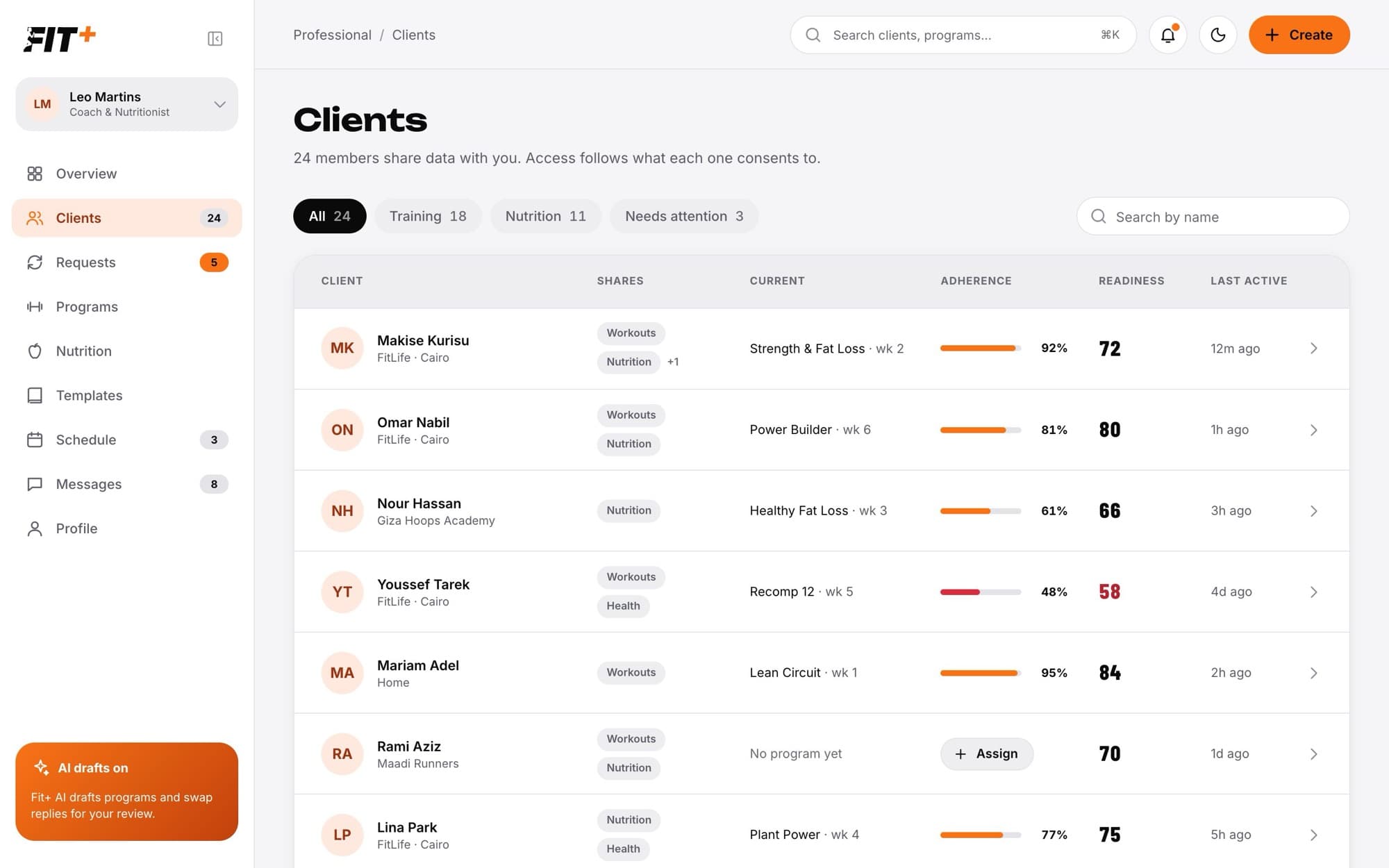
- Use the filters at the top: All, Training (clients who share workouts), Nutrition (clients who share nutrition) and Needs attention.
- Type in Search by name to find someone by name, gym, city or goal.
- Each row shows what the client shares with you, their current program or plan from you, their adherence, their readiness score and when they were last active.
- Assign on a client with no program yet opens the builder with that client already chosen.
A client needs attention when they have an open request, their adherence is under 70%, or their readiness is under 60. Readiness only shows for clients who share their recovery, sleep or check-ins.
Add a client
Use Add client to create a Fit+ account for someone you coach who doesn't have one yet.
Select Clients in the sidebar, then Add client at the top.
In Add a client, enter their Full name and Email address. You don't choose a password for them.
Select Create account. You see Client account created.
Fit+ emails them straight away. The subject is "Name set up your Fit+ account", with your name, and the email has a Set your password button.
What your client does
They open the email from Fit+ and select Set your password.
A page opens where they choose their own password.
They sign in to the Fit+ app on their phone with the same email address and their new password.
The link in the email works once and only for a limited time. If it has expired, they can still open it and ask for a new one there, or use Forgot password? on the sign-in screen.
Creating an account doesn't share anything with you. The account starts with nothing shared, and the person decides what you see in Data sharing in the Fit+ app. Their training, nutrition and health stay private until they share them, and their progress photos always stay private to them.
Until they share something, they appear under Waiting for them to share below your client list, with their email and when you added them. As soon as they choose what to share, they move into your client list.
If they haven't set a password yet
Until they choose their password, they show Waiting for password under Waiting for them to share. If they can't find the email, or the link has expired, select Resend setup email next to their name. Fit+ sends them the email again with a new link.
Open a client's profile
Select a client in the list, or Open next to their name anywhere in Fit+ Pro.
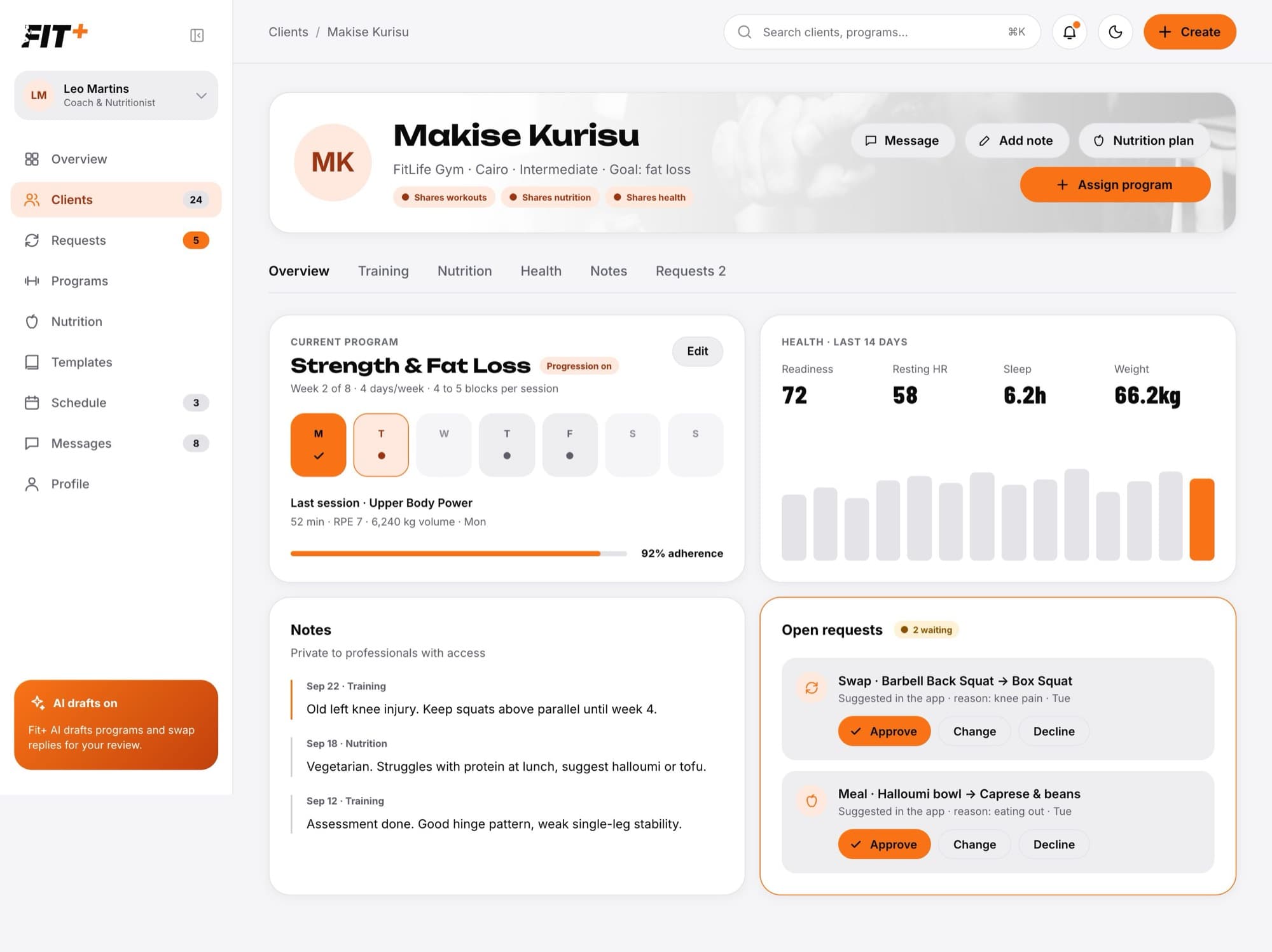
At the top you see what the client shares with you, for example Shares workouts and Shares nutrition, and these buttons:
- Message opens your chat with them.
- Add note writes a note on their profile.
- Assign program (coaches) starts a new training program for them.
- Nutrition plan (nutritionists) opens their current plan or starts a new one.
The tabs show more detail:
| Tab | What you see | You need them to share |
|---|---|---|
| Overview | Current program, health summary, latest notes and open requests | Anything |
| Training (coaches) | Their current program, training history, shared weekly reports and progress charts | Workouts |
| Nutrition (nutritionists) | Their current plan and targets, weekly check-ins, weight trend, nutrients and recent meals | Nutrition (and measurements for the weight trend) |
| Health | Readiness, resting heart rate, sleep and weight over the last 14 days | Sleep, recovery or measurements |
| Notes | All notes about them from professionals they share with | The note's area |
| Requests | Their open swap and meal requests, with Approve, Change and Decline | Workouts or nutrition |
Each part of a tab shows only what the client shares with you. If a client doesn't share something, its button is greyed out and its tab or card says it isn't shared. You can ask them to share it. See Ask a client to share more.
Weights show in the client's own units, kilograms or pounds, so you read the same numbers they do.
For everything on the Training and Nutrition tabs, see Follow a client's progress and Approve nutrition check-ins.
Add a note
On the client's profile, select Add note.
Choose whether it is a training note or a nutrition note, and write it.
Save it. The note appears on their profile with the date.
Notes are a good place for injuries, preferences and anything you want to remember. The client can read your notes in the Fit+ app, and so can the other professionals they share that area with. Notes don't send anyone a notification.
To write a training note, the client must share workouts with you. To write a nutrition note, they must share nutrition.
Read a client's food diary
Nutritionists can see what a client logged each day against their plan.
Open the client's profile and select the Nutrition tab.
Select Open food diary.
Pick a day. You can look back over the last four weeks.
If the client also shares measurements, you also see their height and weight. From the diary you can go back to their profile, write a nutrition plan or add a nutrition note.
They haven't shared any data with you yet. You still see their session in Schedule and can message them. Ask them to share from the Fit+ app.
The person already has an account, so nothing was changed. Ask them to share with you from Data sharing in the Fit+ app.
Reopen the form in the same browser tab and send the same name and email address again. Fit+ finishes the same account instead of creating a second one.
Ask them to check their spam or junk folder and that you typed the right email address. Then select Resend setup email next to their name under Waiting for them to share.
No. Only your client knows their password, because they choose it themselves from the email. If they forget it, they use Forgot password? on the sign-in screen.
They stopped sharing with you, or their sharing ended. Their history stays with them, but you can no longer see it. See When a client stops sharing.
For training, it compares the workouts the client completed with the training days in the program you wrote. For nutrition, it is the share of the last seven days where they logged within 15% of that day's calorie target.