

Read your muscle status
See how ready each muscle is on a front and back body map, find out what shaped it, and tell Fit+ how your body feels.
Muscle status shows how hard each muscle has worked lately and when it should be ready again. It's a front and back map of your body on Home, with 32 muscles on each side. Fit+ estimates it from what you log and from your health data, and it gets better every time you tell it how you feel.
Muscle status is an estimate, not medical advice. It never changes your plan. If a coach or nutritionist gave you a plan, their plan always comes first.
Open your muscle status
On Home, scroll down to Your muscle status, right after Fuel. The card is always there. A summary line, for example "Legs worked hard · Upper body ready", sits above the front and the back of your body, with a legend underneath. Before your first workout, the map is gray and Log a workout helps you add one.
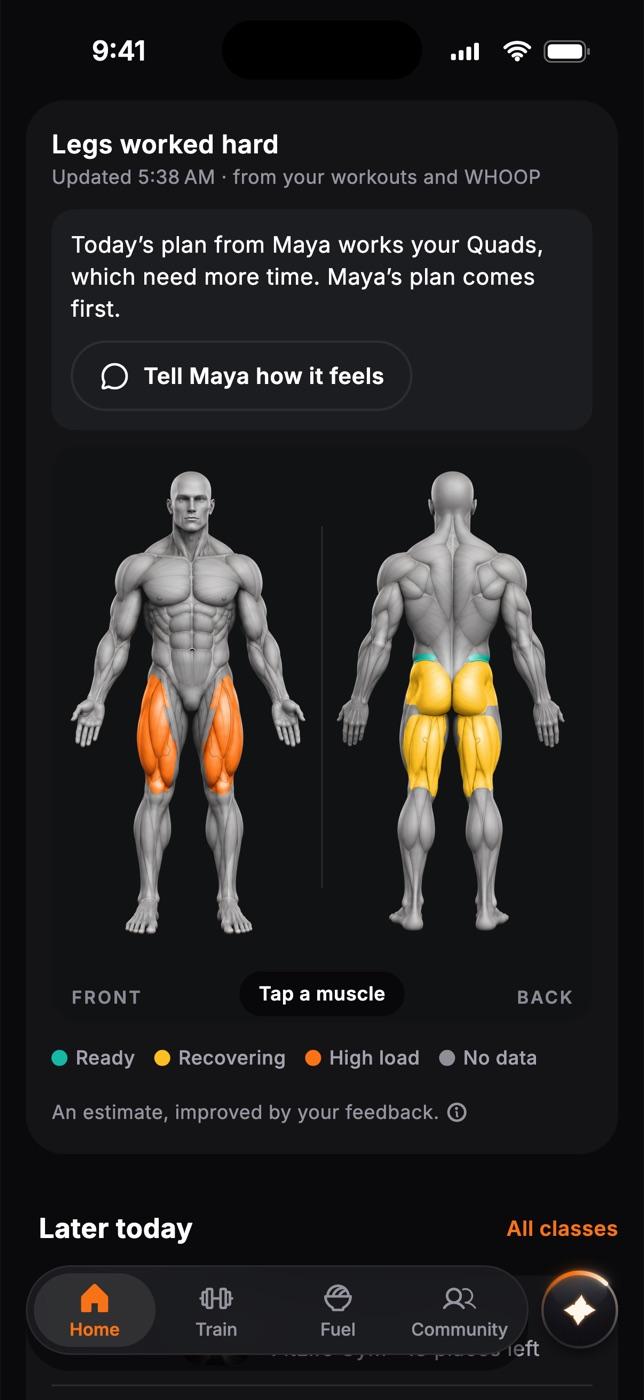
Tap a muscle to see its details, or tap See all to open the full map.
The lines around the map
The summary line above the body map says which muscles worked hard and which are ready. Other short lines help you plan the day:
- If today's plan from your coach works a muscle that is High load, Very sore or has Pain reported, a line names your coach and those muscles, and says your coach's plan comes first. Tap Tell Sam how it feels (with your coach's name) to let them know. Fit+ never changes the plan.
- After your morning check-in, a row asks how a muscle group feels today, for example "How do your legs feel today?". Tap Check in to answer.
What the colors mean
| Color | State | What it means |
|---|---|---|
| Teal | Ready | Likely ready for normal training. |
| Yellow | Recovering | Still recovering. Lighter work may suit it today. |
| Orange | High load | It worked hard recently. Give it a lighter day and train muscles that are Ready. |
| Red | Very sore | You told Fit+ it feels very sore. It only shows after a body check-in. |
| Gray | No data | Nothing you logged in the last 4 weeks used this muscle. |
Very sore only appears in the legend when one of your muscles has it.
What Fit+ looks at
- Your workouts: every set you log, with its reps and how hard it felt (Easy, Good, Hard or Max). The muscles each exercise works come from the exercise library.
- Sports and daily activity: sessions such as football, running or padel, from your own logs or from Apple Health or Health Connect, with how long and how hard they were. Days with more steps than usual count a little too.
- Sleep, food and recovery: short nights, low protein, alcohol after training or an HRV below your usual can slow recovery a little. So can eating well under your target for a few days: when you log your food on at least 2 of the last 3 days and each of those days is far below your target, Fit+ counts it as a big calorie gap.
- Your body check-ins: how a muscle actually feels. See Do a body check-in.
Missing data never counts against you. If you don't track sleep or food, Fit+ simply leaves it out. To bring in sports, sleep and heart data, connect Apple Health or Health Connect.
Use the full map
Tap See all on the card to open the full map.
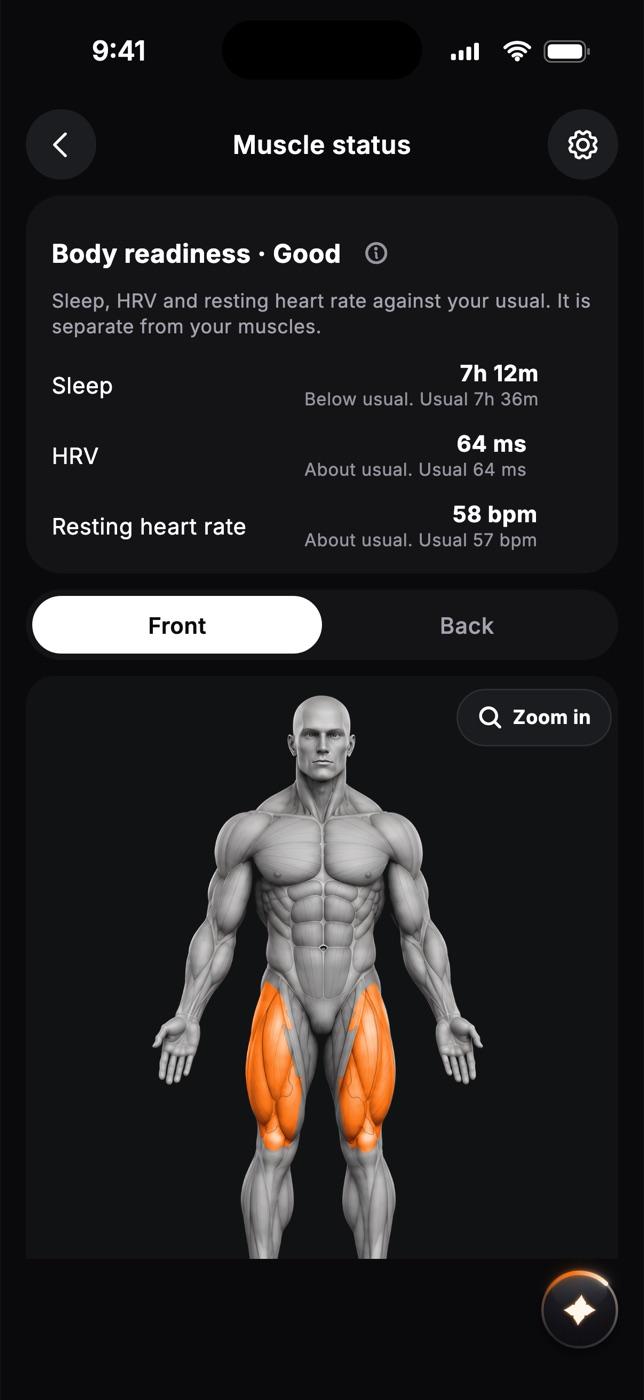
- Switch between Front and Back at the top.
- Pinch or double-tap to zoom in on small muscles. If a tap just misses, Fit+ picks the nearest muscle.
- Under the map, Needs more time lists the muscles that are Recovering, High load or Very sore, with when each one should be ready again.
- Ready lists the muscles that are ready. Tap any muscle in either list to open it.
Open a muscle
Tap a muscle on the map or in a list. Its details open from the bottom of the screen.
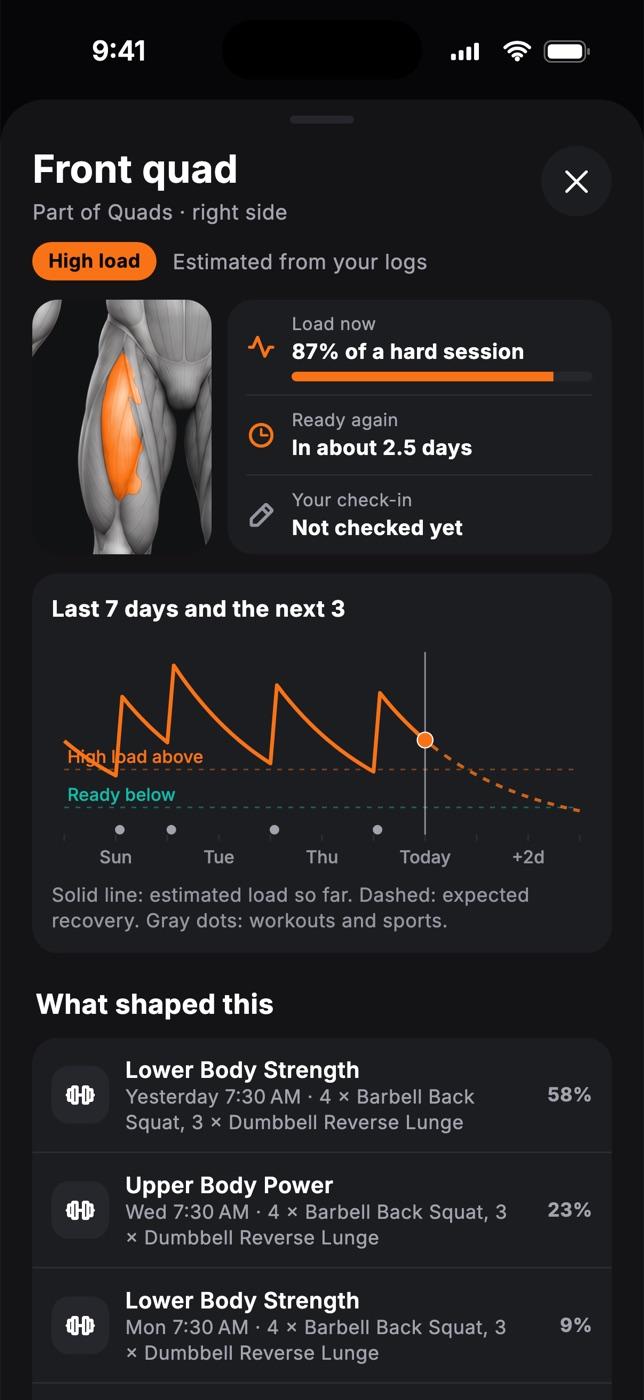
At the top you see the muscle's name, which muscle group and side it belongs to, and its state. Then:
- Load now: how much work the muscle is still carrying, compared with a hard session.
- Ready again: when it should be ready, for example "In about 2 days". Fit+ rounds this to half days. It's a guide, not a countdown.
- Your check-in: your last score for this muscle, or Not checked yet.
- What shaped this: the workouts, sports and active days from the last 2 weeks that loaded it, each with its share. Under the list, a line tells you if the muscle is recovering a little slower today and why, for example after a short night.
- Other parts of the muscle group. Tap one to switch to it.
- What this means today: a plain suggestion for today. If your coach's plan for today uses this muscle, it reminds you that the plan comes first.
Two buttons sit at the bottom: Review workout and Update how I feel.
Read the curve
The chart Last 7 days and the next 3 shows how the muscle's load has changed and how it should recover.
- The solid line is the estimated load over the last 7 days.
- The dashed line is the expected recovery over the next 3 days.
- The dots along the bottom are your workouts and sports.
- The marker on Today shows where the muscle is now.
- Two guide lines mark the states: under Ready below, the muscle counts as Ready. Over High load above, it counts as High load. In between, it's Recovering.
A curve that rises after a session and then slowly falls is normal. The steeper the drop, the faster that muscle tends to recover.
Do a body check-in
A body check-in tells Fit+ how a muscle really feels. It takes a few seconds and makes your map more accurate over time.
Open a muscle and tap Update how I feel.
Under Which side?, choose Both, Left or Right. The close-up of the muscle outlines the side you chose, or both sides.
Under Muscle soreness, tap a number from 1 (None) to 5 (Very sore). These are the same five buttons as in your morning check-in.
Under Feeling, choose Sore, Tight or Pain.
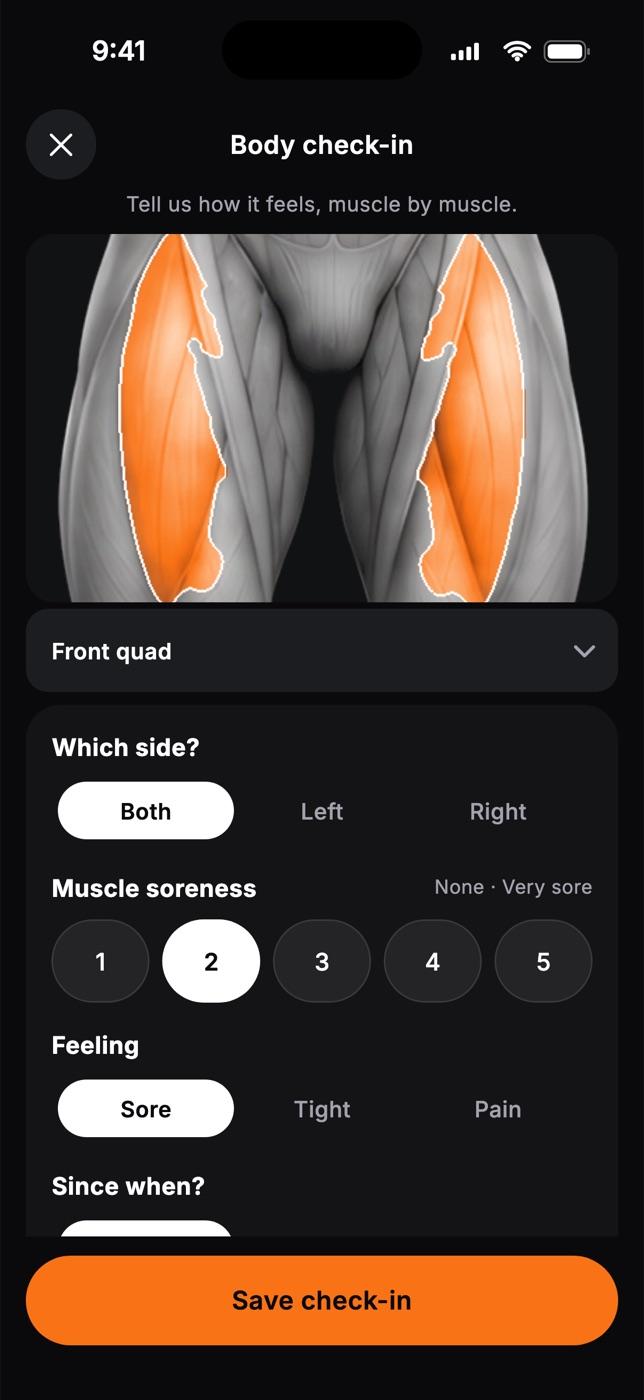
Under Since when?, choose Today, Yesterday or 2+ days.
Tap Save check-in.
What happens next:
- 5: the muscle shows Very sore for 2 days.
- 3 or 4: the muscle shows at least High load.
- 1: a muscle at High load moves down to Recovering.
Fit+ also learns from your answers. If a muscle often feels more or less sore than the map expected, Fit+ adjusts how fast that muscle recovers for you.
Pain is not soreness
Soreness is the normal ache after training. Pain is different.
Stop and get medical advice for sharp pain, pain in a joint, swelling, loss of strength, soreness that gets worse after 3 days, or dark urine.
If you choose Pain in a check-in, a warning appears and the button changes to Save as pain. Fit+ saves it as a note, never as soreness.
For the next 7 days:
- The muscle keeps its color on the map, but its details show Pain reported with the safety advice above.
- What this means today says Fit+ won't suggest training that muscle until you clear the note.
When it feels fine again, open the muscle and tap Clear note. The note goes away, and so does Very sore if you reported it earlier.
If you have a coach, tap Tell Sam (with your coach's name) to write to them about it. A message opens with the muscle, your score and how it feels already filled in. Nothing is sent until you send it.
Your coach's plan comes first
The map is there to inform you. It never removes or changes exercises in a plan. When your coach's plan for today uses a muscle that is High load, Very sore or has Pain reported, a line in Your muscle status on Home says so, and What this means today suggests telling your coach how it feels before you start. You can message your coach at any time.
Share it with your coach
Your coach sees your muscle status only when you share both Workouts & training and Recovery & heart data with them.
Tap Me, then Who can see my data.
Tap your coach under Sharing with, then turn on Workouts & training and Recovery & heart data. If you don't share with them yet, tap Share with someone instead.
Your coach then sees your map, its details and your check-ins, read only. They can't change them. Turn either one off to stop sharing at any time. See Choose who can see your data.
Your privacy
- Your muscle status and your check-ins are health data. Only you can see them until you share them.
- Joining a gym never shares them.
- Muscle status is also on the Fit+ website. See Your muscle status on the web.
Common questions
Nothing you logged in the last 4 weeks used it. Log a workout or sport that works it, or connect Apple Health or Health Connect so your sports come in on their own.
It's an estimate from your logs. Do a body check-in with 1 (None). The muscle moves down to Recovering, and Fit+ learns from your answer.
Check that the session reached Fit+: log it yourself, or make sure Apple Health or Health Connect is connected and has synced.
Open the muscle and tap Clear note. Notes also go away by themselves after 7 days.
No. It never changes a plan by itself. Your coach's plan always comes first.
No. Muscle volume counts your working sets per week against a growth range. Muscle status shows recent load and recovery, day by day.